Practical guide · Controls and getting started
How to set Michael’s GTA 5 ringtone on Jason’s phone in GTA 6
Open Jason’s phone in GTA 6 and choose Settings → Ringtone → Wind Chimes. It’s the tune Michael De Santa’s phone played in GTA 5.
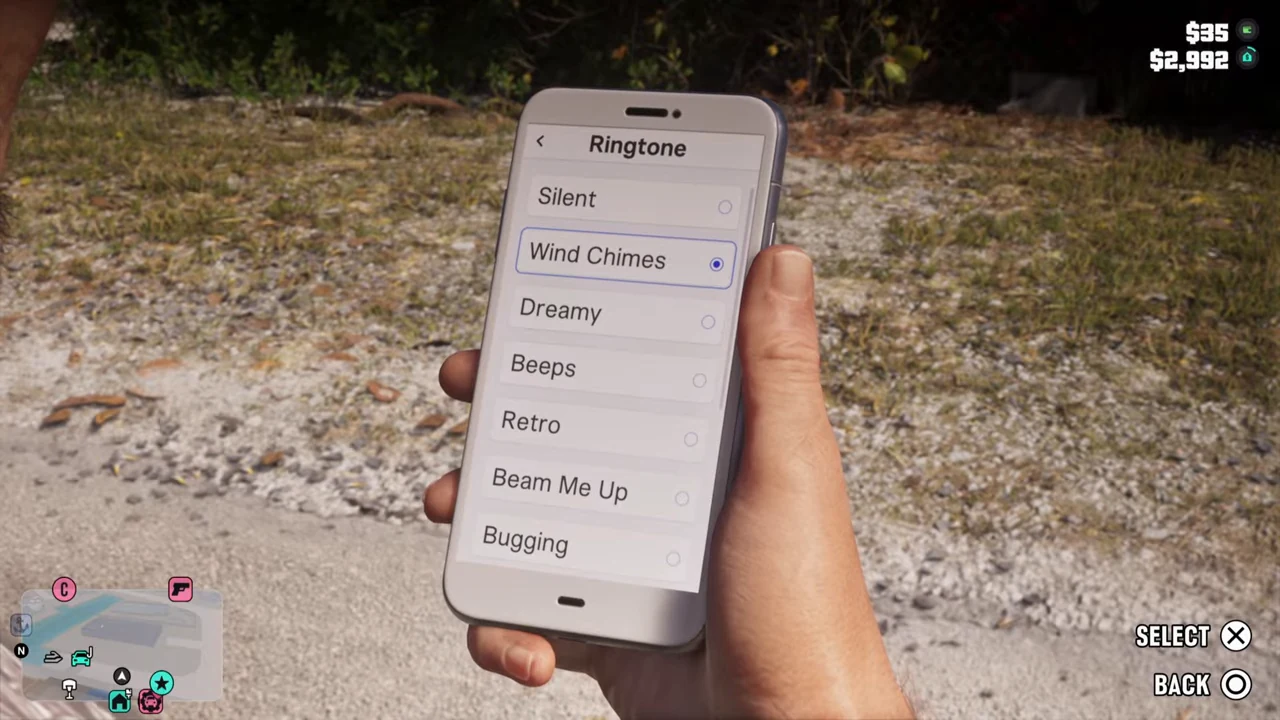
Where is Wind Chimes on Jason’s phone?
Press Up on the D-pad to bring up the phone and open Settings from the app screen. Jason’s name appears at the top. Choose Ringtone, just below Wallpaper, then select Wind Chimes. It’s the second entry, between Silent and Dreamy.
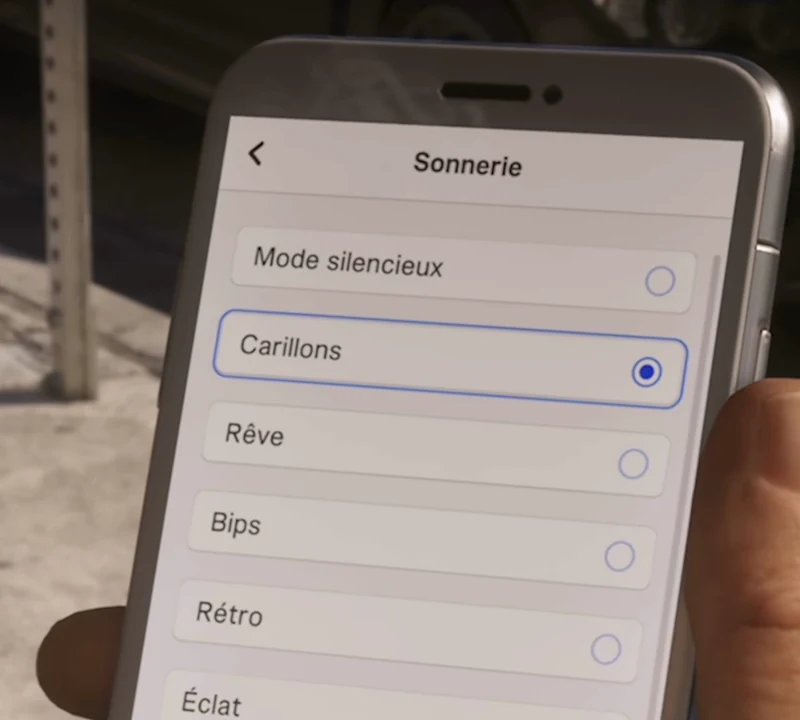
How can you tell which ringtone is active?
Look for the filled blue dot on the right of Wind Chimes. Checkmark Academy’s recording shows the dot next to Dreamy before the change, then next to Wind Chimes at 0:30. To switch back, select your old tone from the same list.